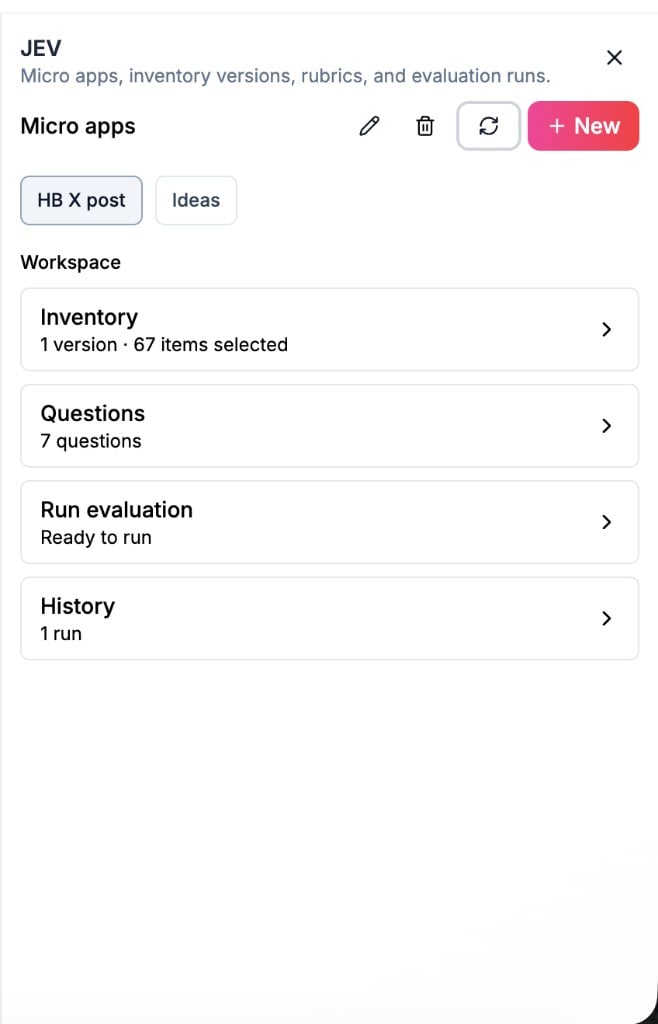
JEV is for the agent owner. Subscriber chat does not show the JEV panel. Optional API access uses keys with scopes such as
jev_read / jev_run when you enable them for your workflow.Words on the panel
Typical flow
1
Open JEV on your Starter Agent
From My Agents, find the agent → click the chat icon
2
Create or select a micro app
Create a micro app, or select an existing one. You can rename or delete apps you no longer need. The selected app is remembered for this agent on this browser.
3
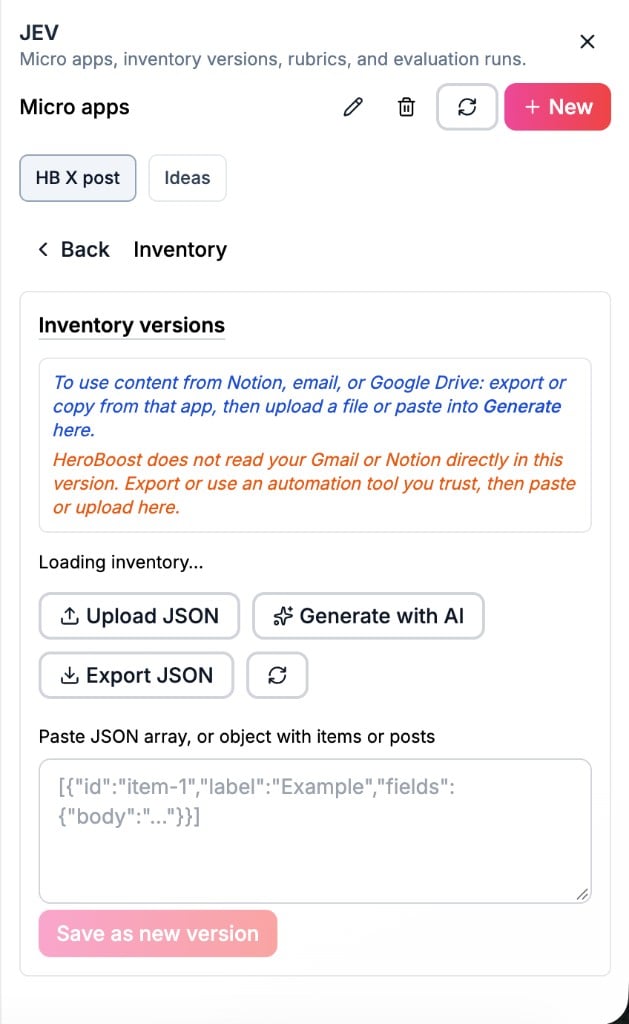
Build inventory
Add items by upload, load, or generate, depending on what your micro app supports. Confirm the inventory list before you run.
4
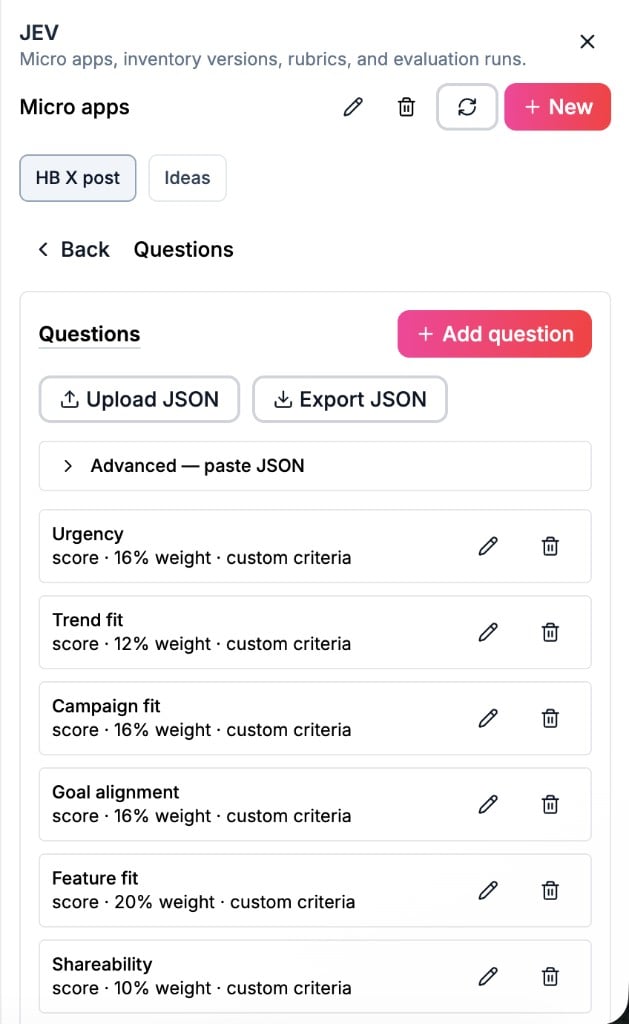
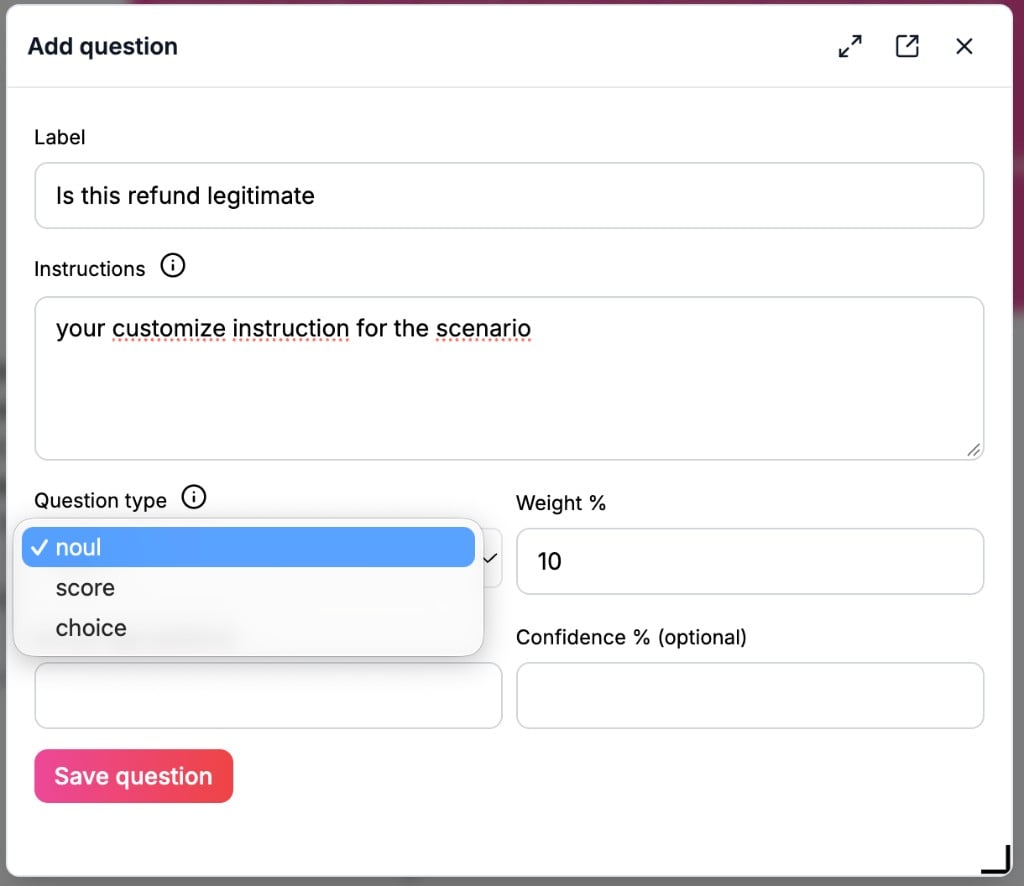
Set questions and rubric
Edit questions and rubric dimensions so a run knows how to score. Keep dimensions clear enough that results stay comparable across runs.
5
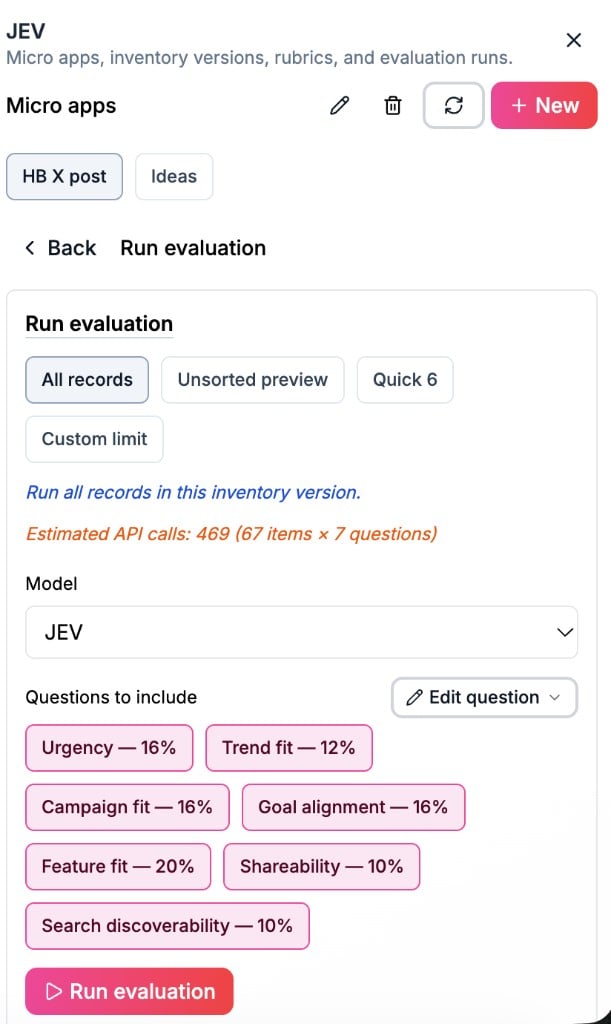
Run evaluation
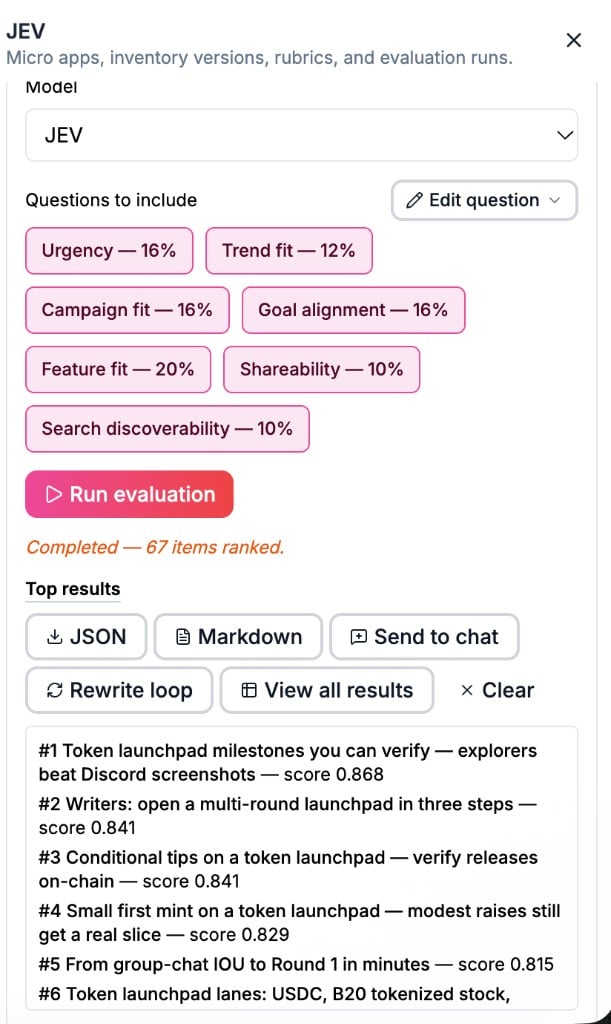
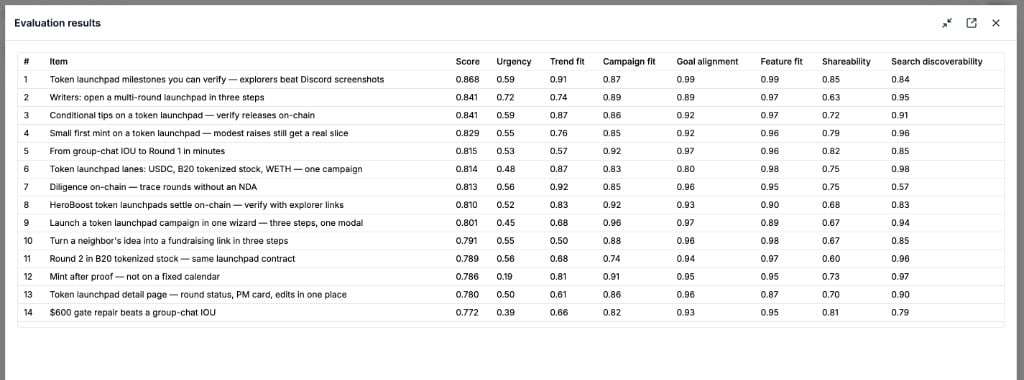
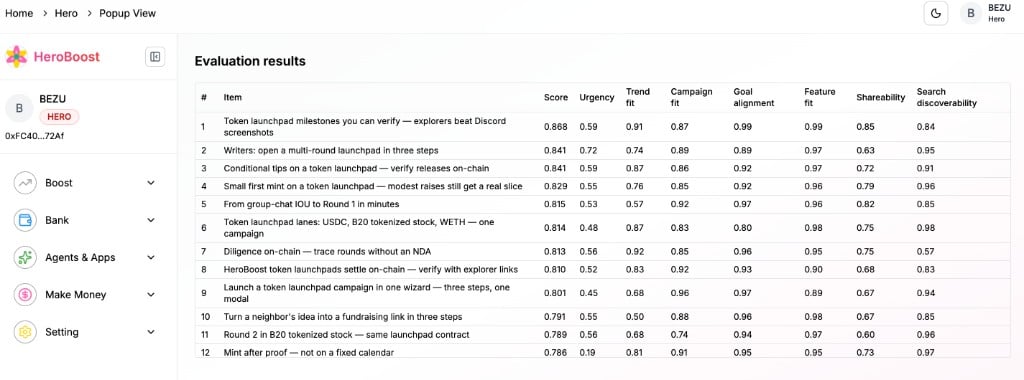
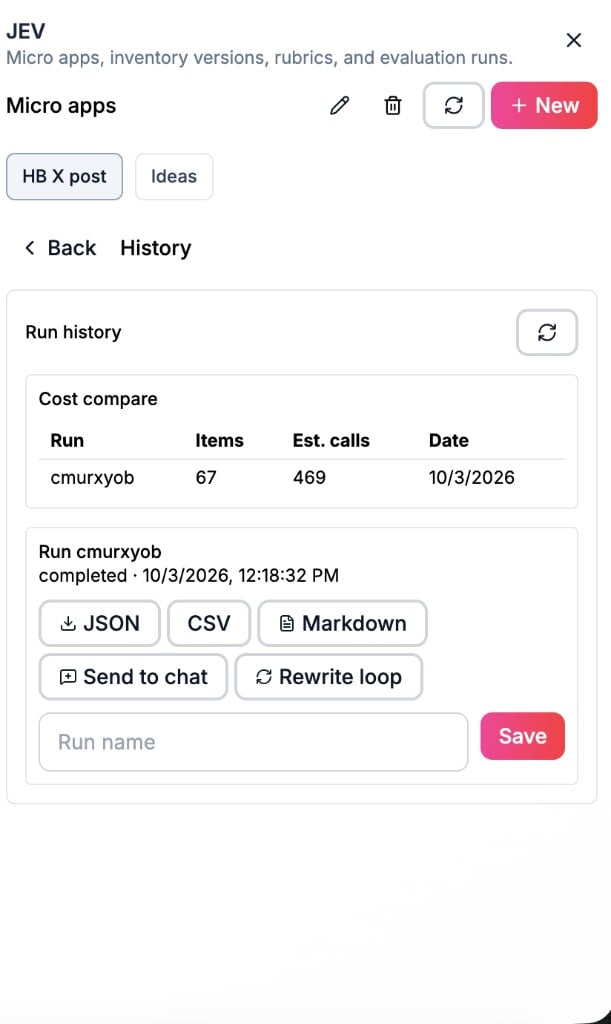
Start a Run. When it finishes, open history / results. You can insert a summary into the chat composer when the panel offers that action.
6
Optional — rewrite loop
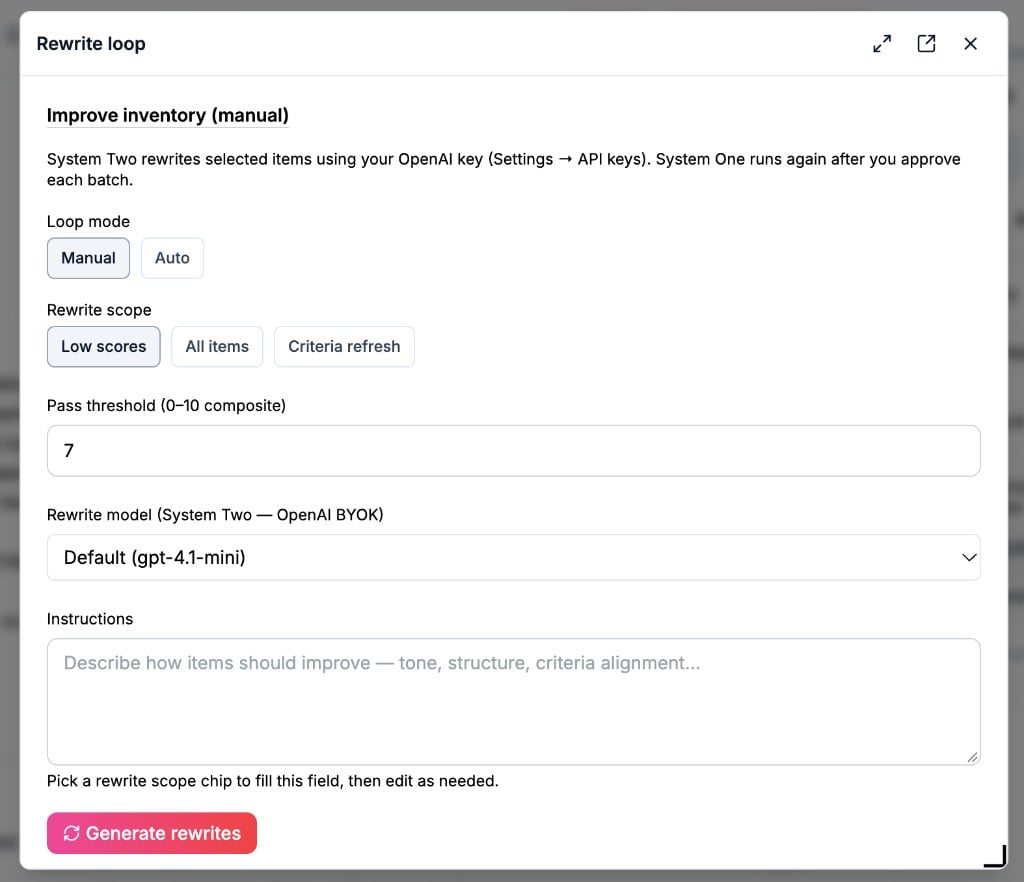
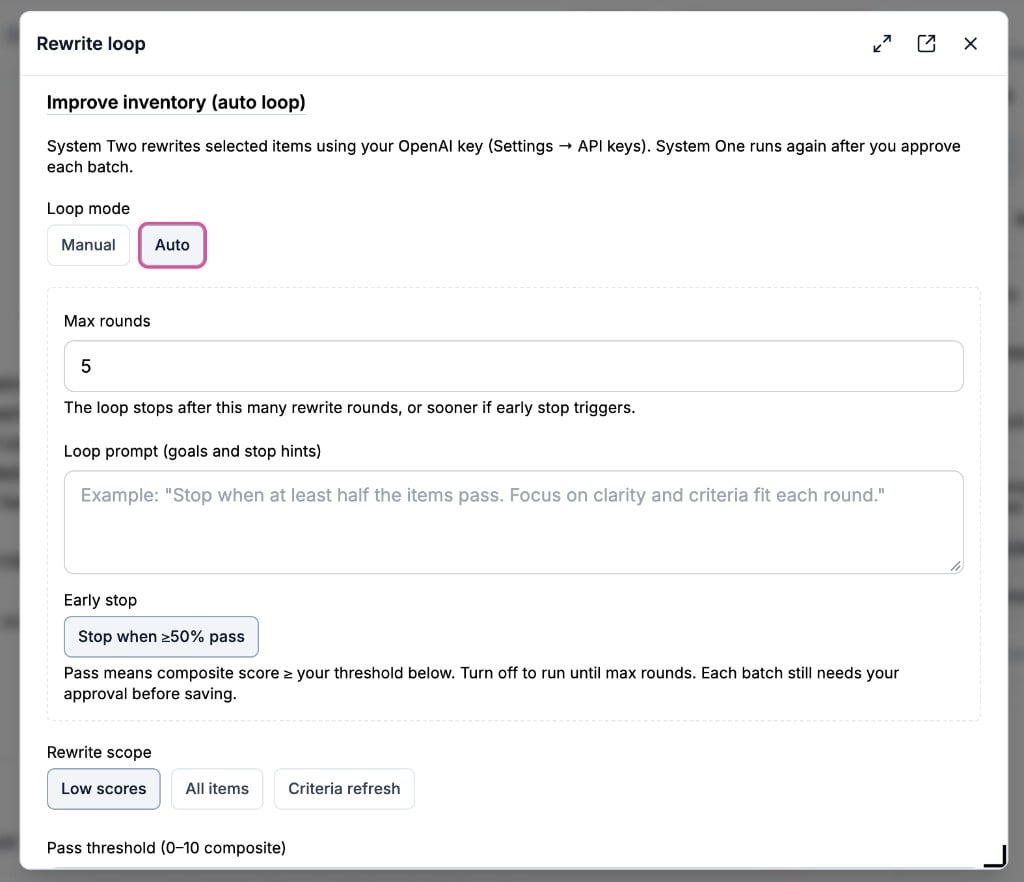
For items under your threshold, use the rewrite loop: revise those items into a new inventory, then run again. Auto mode can stop early when improvement stalls (product defaults exist for threshold and max rounds — adjust only if the UI exposes them).
Settings and access
- Use JEV settings on the panel for micro-app options that belong with evaluation (not the global Configure tabs for model hosting).
- If you issue API credentials for JEV, keep scopes limited to what you need (
jev_read/jev_run). - Subscriber-facing JEV (if you turn on any “enabled for subscribers” option in agent config) is a separate product choice — default owner chat remains the primary path documented here.
Tips
- Treat the first successful run as your baseline before you change the rubric mid-stream.
- Prefer one micro app per evaluation purpose so history stays readable.
- Pair JEV digests with Automation when you want scheduled follow-up — use Send to… only for destinations the UI lists.
Related
Screenshots
UI walkthrough for the same JEV flow — switch tabs in order (create app → inventory → questions → run → results → rewrite).- 1 Create
- 2 Home
- 3 Inventory
- 4 Questions
- 5 Add question
- 6 Run
- 7 Top results
- 8 Results
- 8b Full page
- 9 History
- 10 Manual
- 11 Auto
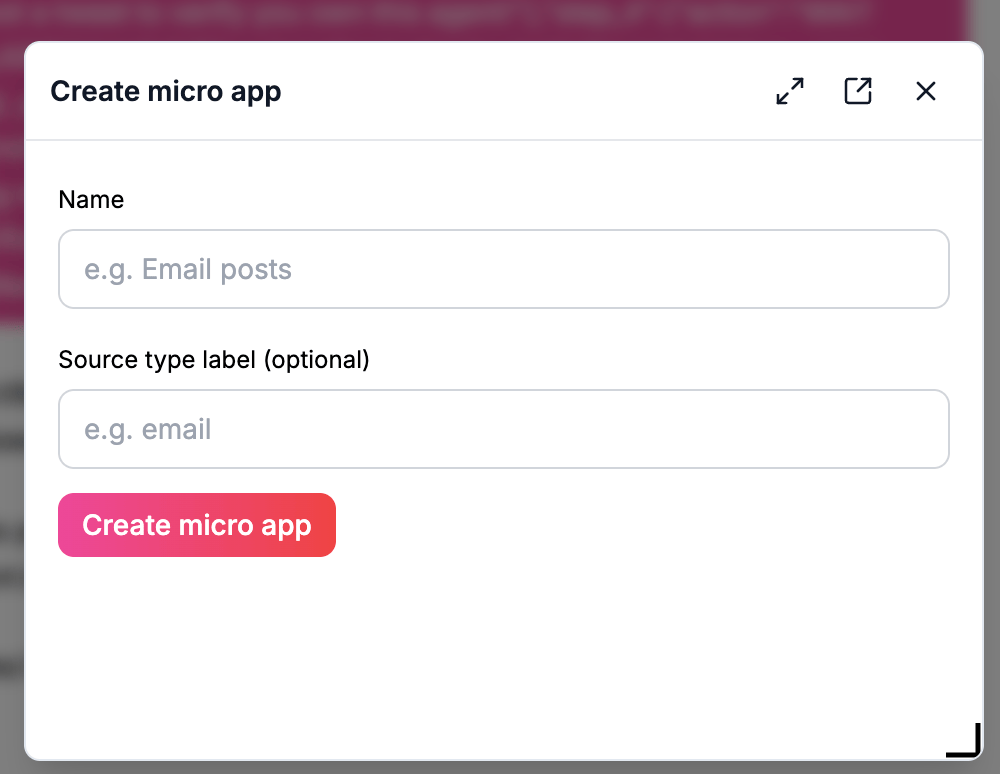
Create micro app — name and optional source type label