This guide is for agents only. Imported apps use a separate Explore listing commitment flow — do not mix the two.
Words on the dashboard
1
Create an agent
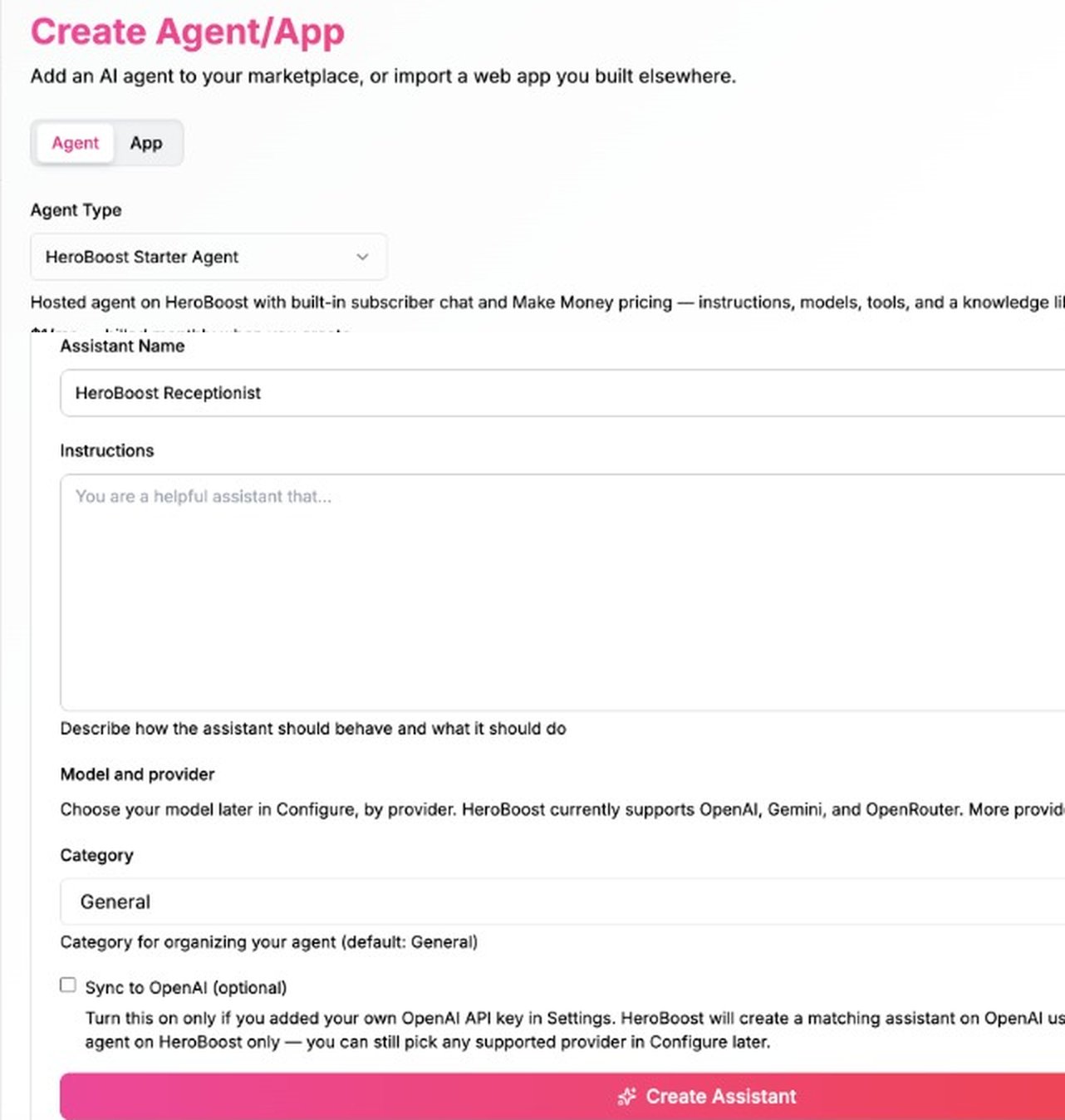
Open Create Agent from your Hero Dashboard and pick the path that matches your agent — see the five paths table.The screenshots below use HeroBoost Starter Agent as an example.
-
Fill the form — agent type, name, instructions, and category. Tap Create Assistant.
-
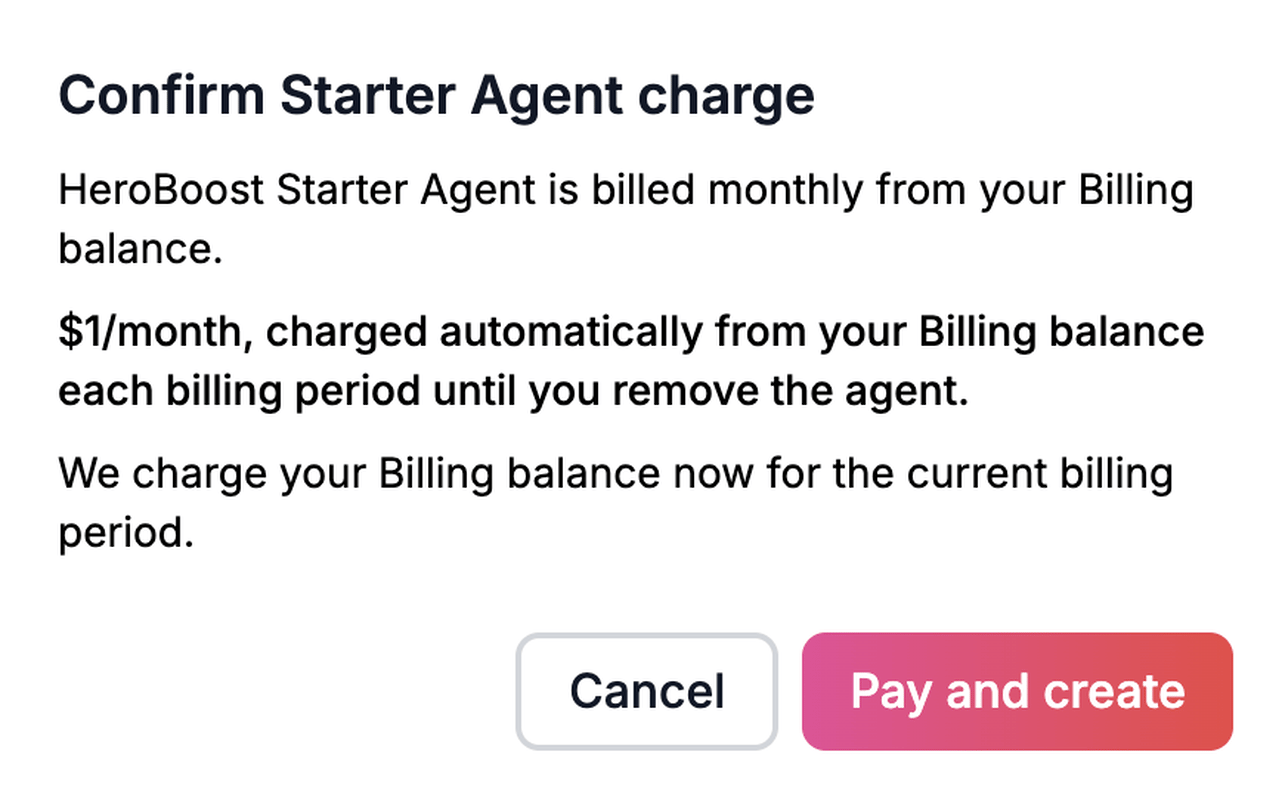
Confirm the hosting charge — for Starter Agent, review Confirm Starter Agent charge and tap Pay and create.
- Check My Agents — when creation succeeds, the agent appears on your dashboard.
2
Configure and test chat
In My Agents, tap Configure. Pick a Model provider and Model, then Save. Open test chat and confirm responses look right.Other Configure areas (instructions, tools, API tabs, OpenClaw gateway, workflow IDs) → Configure your agent (coming soon).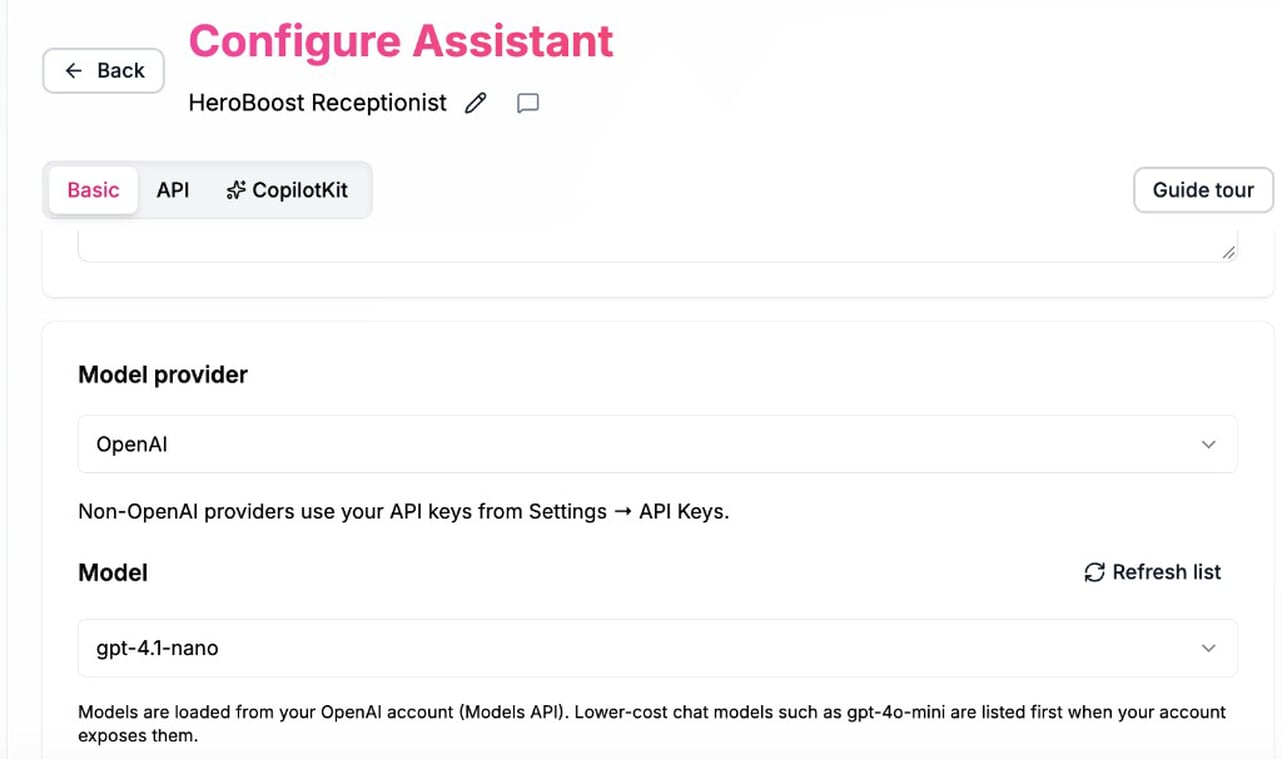
3
Turn on for resale
This step turns on the Active badge on My Agents. Publishing your quality commitment on Pricing does not turn resale on by itself — you must confirm on the power icon after the commitment is published.This step does not list the agent on public Explore yet. You need a sales plan in step 4 before the Listed badge appears.Prerequisite: Reseller Mode on (Make Money → Resource → Activation). If it is off, turn it on first (see Reseller Mode off below).
-
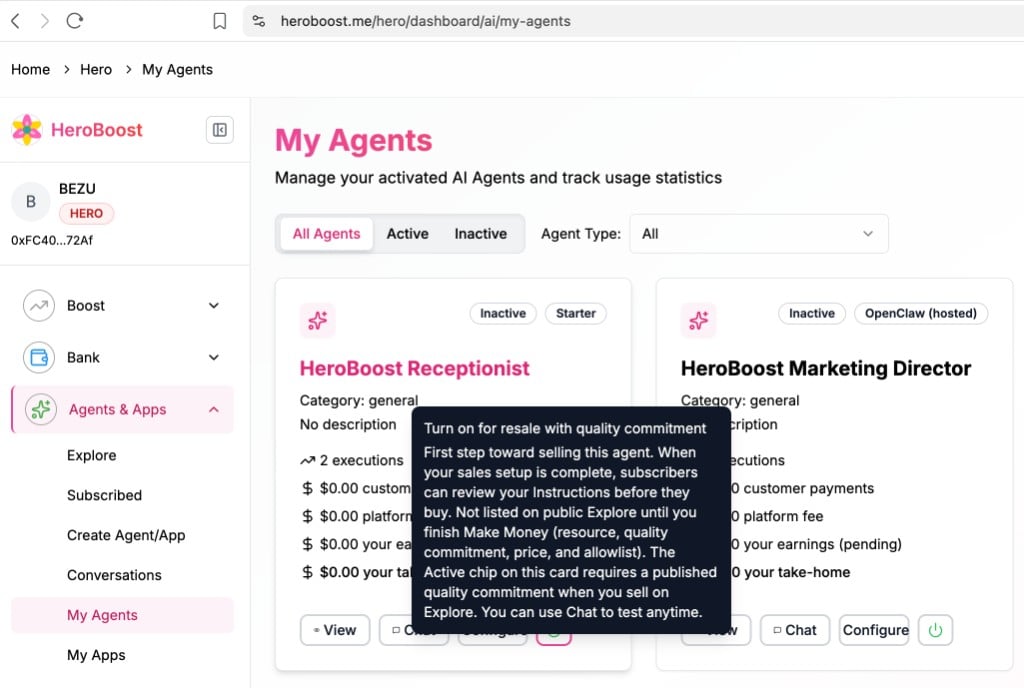
On My Agents, hover the power icon. The tooltip explains that resale needs a published quality commitment before the Active badge, and that public Explore comes later after Make Money setup.
-
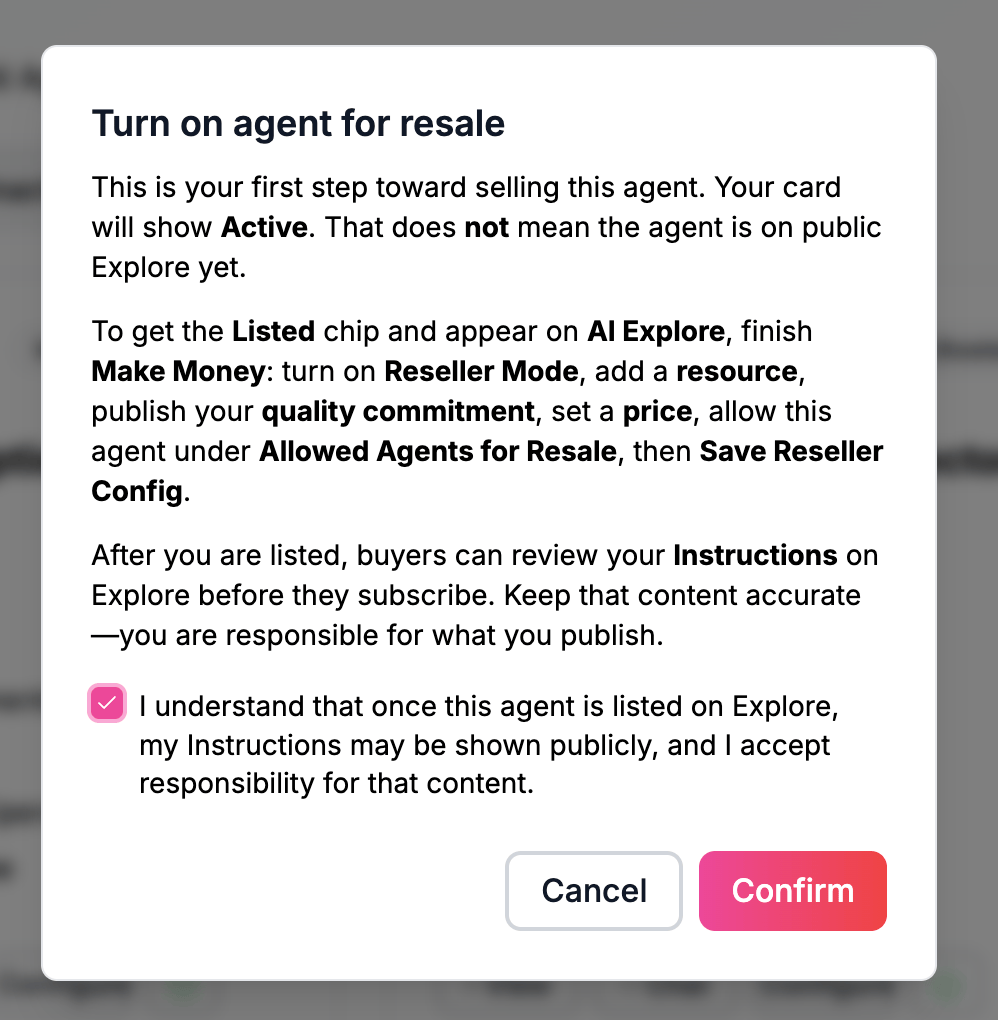
Tap the power icon. Read Turn on agent for resale, check the acknowledgment, and tap Confirm.
-
If you have not published a quality commitment yet, the product shows Quality commitment required instead of turning the agent on. Tap Go to Quality Commitment (opens Pricing with
?focus=quality-commitment). Fill the form and publish. Publishing sets Commitment active for listing on Pricing — it does not change the My Agents badge yet.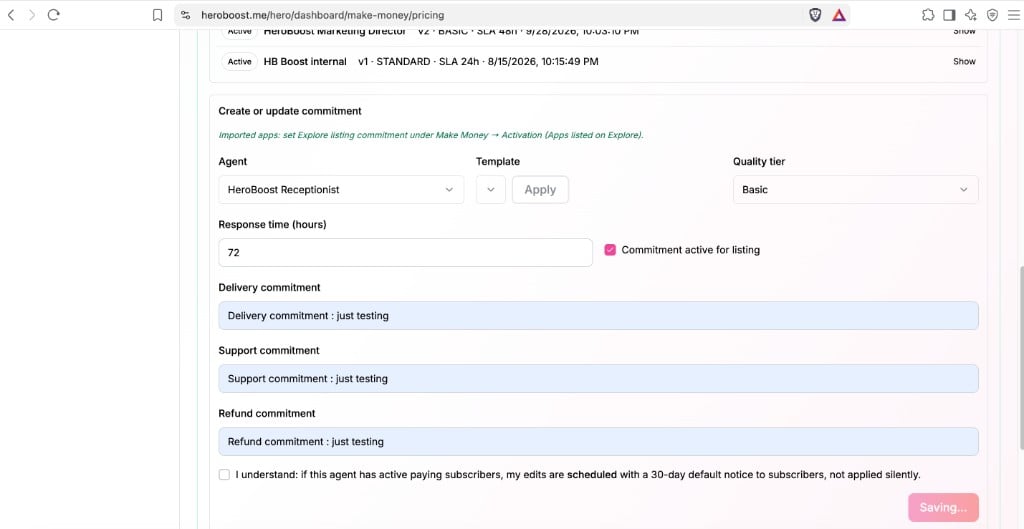
- Return to My Agents and check the badge on the agent card:
- Already Active — resale was already on (for example, you activated earlier). Continue to step 4.
- Still Inactive — tap the power icon again, read Turn on agent for resale, check the acknowledgment, and tap Confirm. The card should show Active, and the agent is added to Allowed Agents for Resale automatically — you do not need to find and toggle it manually on the normal path.
4
Prepare your sales plan
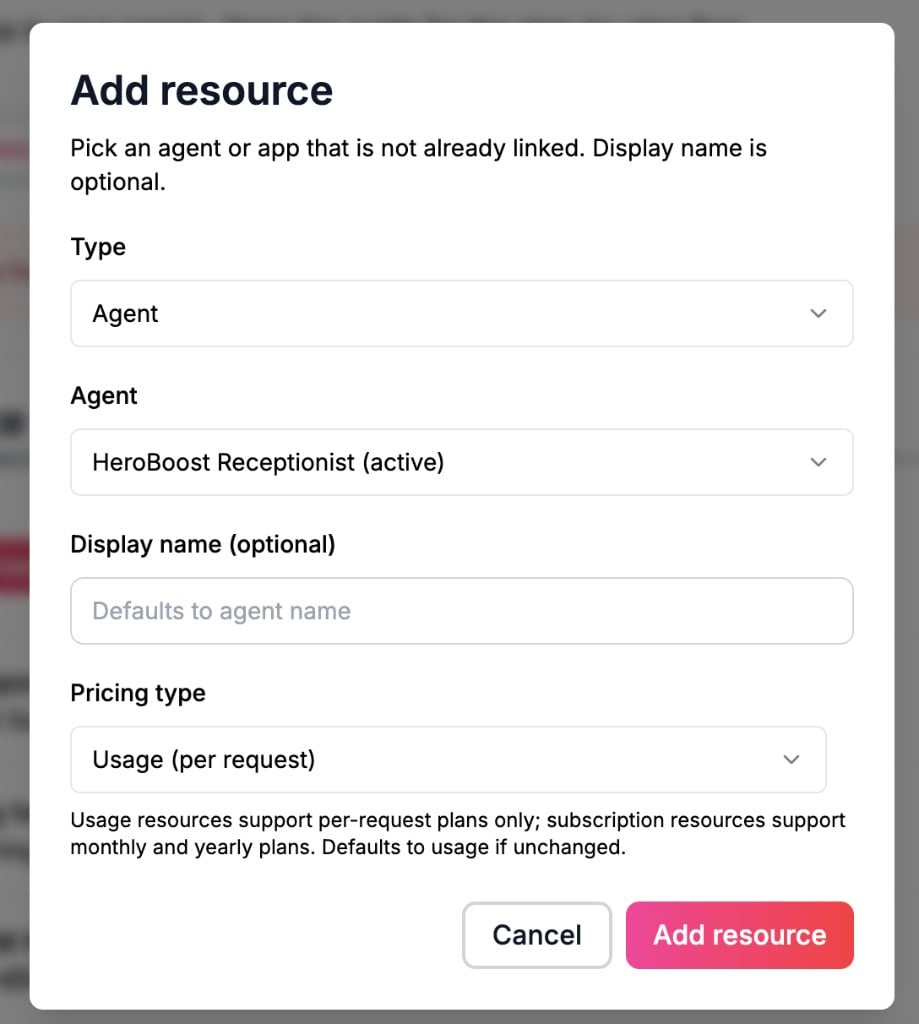
With Active on My Agents and your quality commitment already published, finish what you sell and what you charge. This step has no quality commitment form and no manual allowlist step for the agent you just activated.Work through this checklist in Make Money: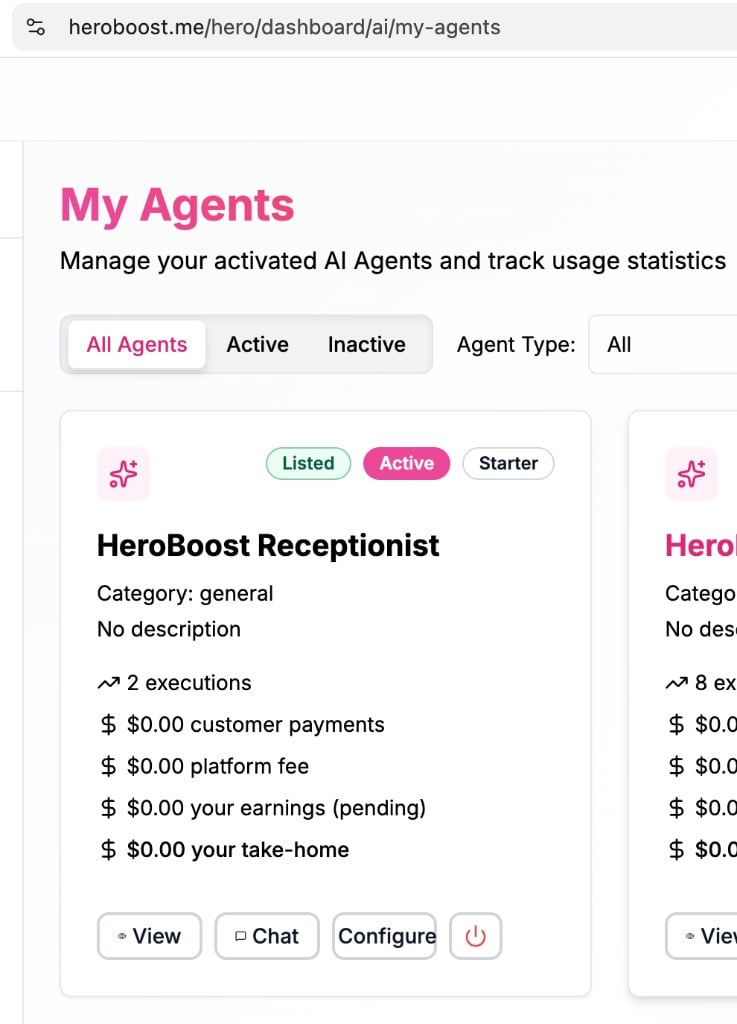
- Add resource — Resource → Add resource. Choose your agent and pick Usage or Subscription (this locks where you set price later).
- Resource groups (optional) — only if you bundle agents into subscription tiers. Make Money → Resource groups.
-
Set your price
-
Save when the screen shows unsaved changes (Resell Usage or Reseller Config).
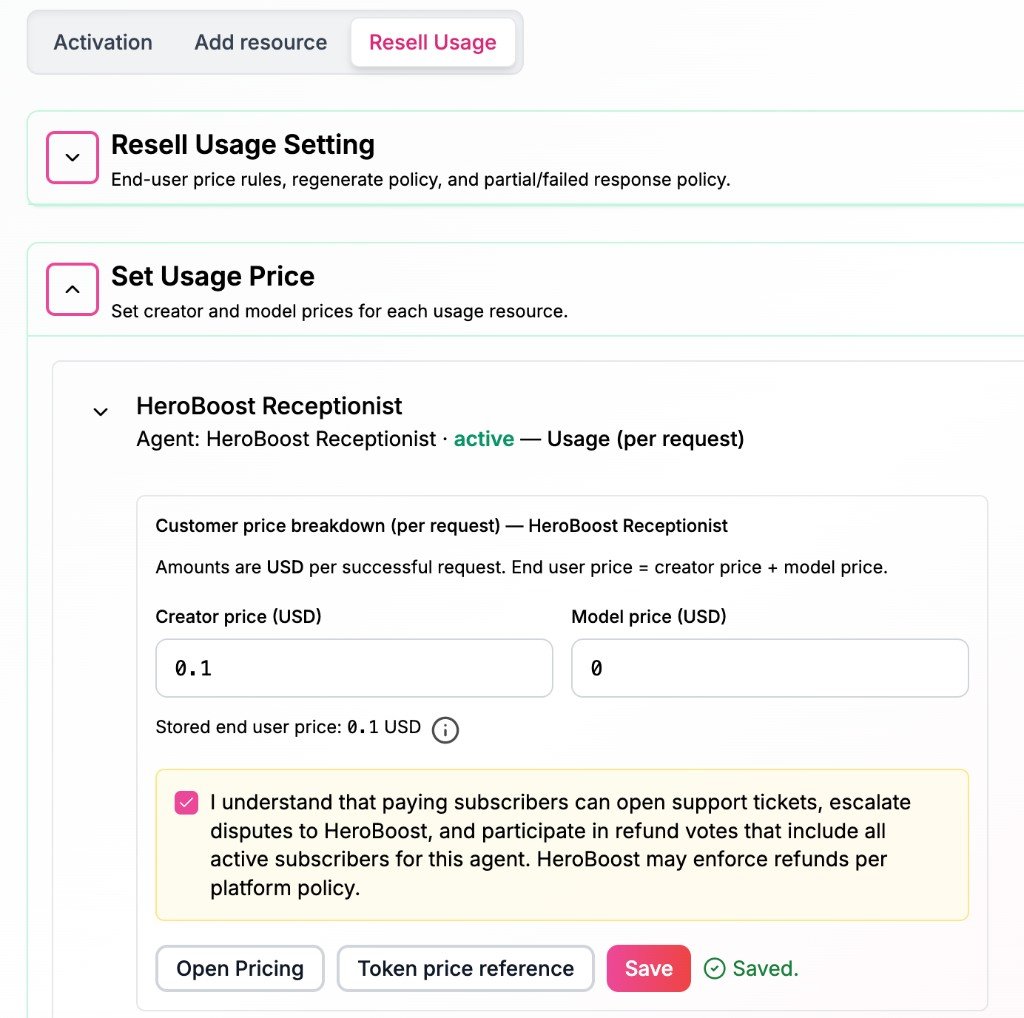
5
Verify on AI Explore
Open AI Explore → AI Agents in your dashboard, then heroboost.me/explore/agent. Confirm your agent card shows as available to customers.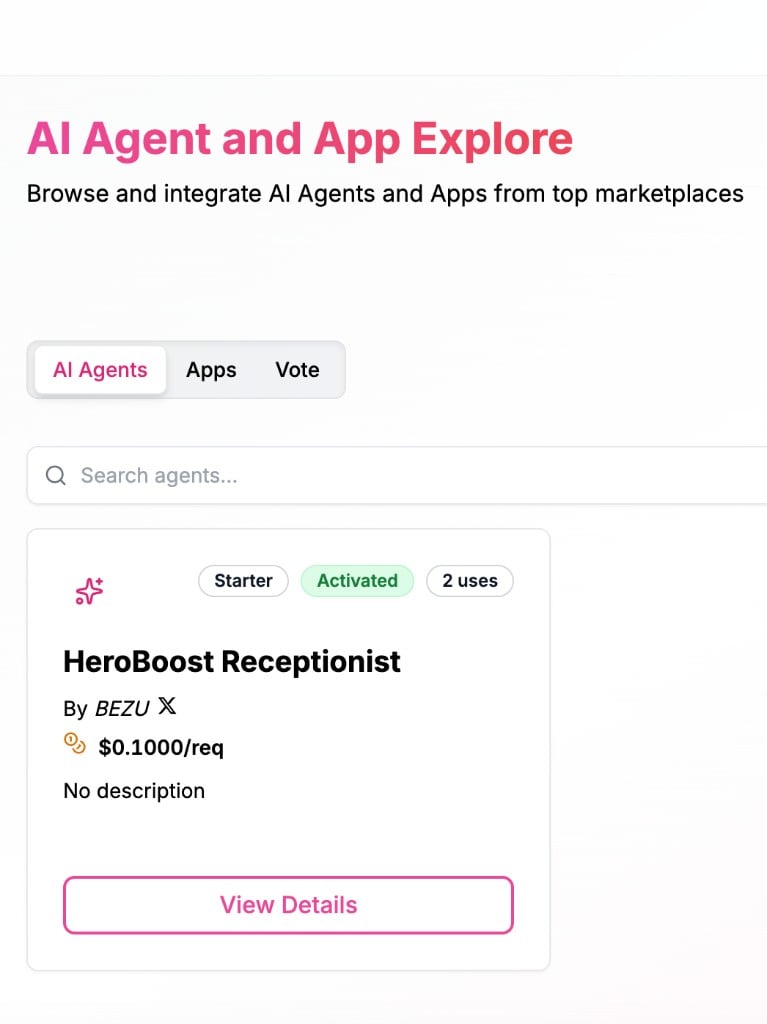
Reseller Mode off
If Reseller Mode is off when you try to turn an agent Active, Quality commitment required shows two buttons: Open Make Money setup (turn on Reseller Mode) and Go to Quality Commitment. You need both Reseller Mode and a published commitment before Active. After that, follow step 3 above on the power icon.Before you start
Notes by agent type
Create and Configure differ by path; steps 3–5 are the same.Usage vs Subscription (support and refunds)
- Usage: price on Resell Usage; failed provider turns are not charged — see Monetize.
- Subscription: price on Pricing; prepaid access rules apply when offered.
Troubleshooting
Active but not ListedYou turned resale on (Active) but the Listed badge is still missing. Finish Prepare your sales plan: add a resource, set and publish your price (Usage or Subscription), and Save where the product prompts. You do not need to publish your quality commitment again if you already did that to turn Active on.Agent not in Allowed Agents for Resale / allowlist switch disabled
Normal path: publish your quality commitment, then turn Active on My Agents — the agent is added to the allowlist automatically. You should not need to find this agent in Allowed Agents for Resale after that. If it still fails: confirm Reseller Mode is on (Make Money → Resource → Activation). Use Save Reseller Config only when you are manually changing other agents — not as a substitute for the commitment → Active flow.Agent not in Add pricing plan dropdown
Add a resource first (Make Money → Resource → Add resource). The pricing plan picker only lists resources you have already created.“Quality commitment required”
Publish your commitment on Pricing → Quality Commitment (or tap Go to Quality Commitment from the dialog after you tap Confirm on the power icon). The link may include ?focus=quality-commitment. After publishing, return to My Agents and complete activation with the power icon (see below).
Inactive after publishing quality commitment
Publishing on Pricing only marks Commitment active for listing — it does not turn on the Active badge. Return to My Agents, tap the power icon, check the acknowledgment, and tap Confirm. The card should show Active and the agent should appear on Allowed Agents for Resale automatically.Imported apps
Imported apps use a separate Explore listing commitment flow. This guide is for agents only — see the note at the top of this page.